Blog / Work Smarter
Get a Transcript From Any Video in 5 Steps(Even If It’s Not on YouTube)
Rather watch than read? Here’s the whole walkthrough.
Key takeaways
Upload your video or audio file to NotebookLM, let it read, copy the transcript out, and export it to a Doc. Free, roughly five minutes, no new tools to learn. Watch the 200 MB file size limit and the new usage limits, because those are the parts that’ll get you.
You made the video. It’s sitting on your desktop. And now you need the words out of it.
Except it’s not on YouTube, so there’s no handy little “show transcript” button waiting for you.
Cool. Cool cool cool.
Here’s the deal: you don’t need a new tool. You don’t need another subscription you’ll forget to cancel until it quietly charges you in March. You need about five minutes and a tool you probably already have open in another tab.
Why Not Just Use a Transcript Tool?
Because you’d have to go find one. Make an account. Hand over a card. Learn where all the buttons live.
For a task that takes five minutes.
Here’s what actually happened. I made a short video for my group, and then I thought: I wanna turn this into an email. Which meant I needed a transcript. Not on YouTube. No button. Nothing.
Meanwhile I’m coming back from winter break as a teacher, which is brutal on a good day, never mind running multiple businesses, memberships, and Facebook groups on top of it.
So no. I wasn’t learning a new tool that week.
I went to my BFF instead: NotebookLM.
(Quick note before we go further: Google renamed it Gemini Notebook in 2026. Same tool, same buttons, new sign on the door. I still call it NotebookLM out of pure habit, so if you see both names in here, that’s why.)
That’s the whole trick, honestly. Not a better tool. A tool you already know.
How to Get a Transcript From a Video That’s Not on YouTube
Five steps. That’s it.
Step 1: Open NotebookLM and hit “Create new,” then “Upload files.”
Not the YouTube option. That one’s for videos already living on YouTube. Yours isn’t. That’s the whole reason you’re here.
Step 2: Upload your file.
Your OBS recording. Your podcast audio. That voice memo where you rambled something genuinely good in the car.
Step 3: Go get a coffee.
It has to actually listen to the whole thing, so this takes longer than a blog post or a YouTube link would. Load it up, go outside, touch grass, come back.
Step 4: Click your source and copy the transcript.
And there it is. The whole thing, done for you.
It will look like a hot mess. No paragraphs, no punctuation to speak of, one enormous wall of words. Ignore that. We fix it at the end.
Step 5: Move it somewhere useful.
Highlight the transcript, copy it, click Add note, paste it in. Then hit Convert to source, that turns your clean transcript into its own separate source, pulled out from the original file. From there, Export to Docs.
Then paste it into Gemini or ChatGPT and tell it to clean up the formatting. Thirty seconds, tops.
Quick easy peasy lemon squeezy.
Fair warning: it will probably butcher your name. Mine came back spelled with a K. Rude. Fix it in cleanup and move on with your life.
Wait, Will It Take My MP4?
Straight answer, because this one actually matters.
When I recorded this walkthrough, I uploaded a video file and NotebookLM chewed right through it. Good news: Google’s current list of supported files now includes MP4. MOV still isn’t on it. Google moves this stuff around constantly.
So here’s the play: try your video first. If it bounces, convert it to an MP3 and upload that instead. Free converters are everywhere, VLC does it, and the transcript comes out identical.
It only ever needed the audio anyway.
Either way, you get your transcript. You might just take one extra step to get there.
The 200 MB Wall (Ask Me How I Know)
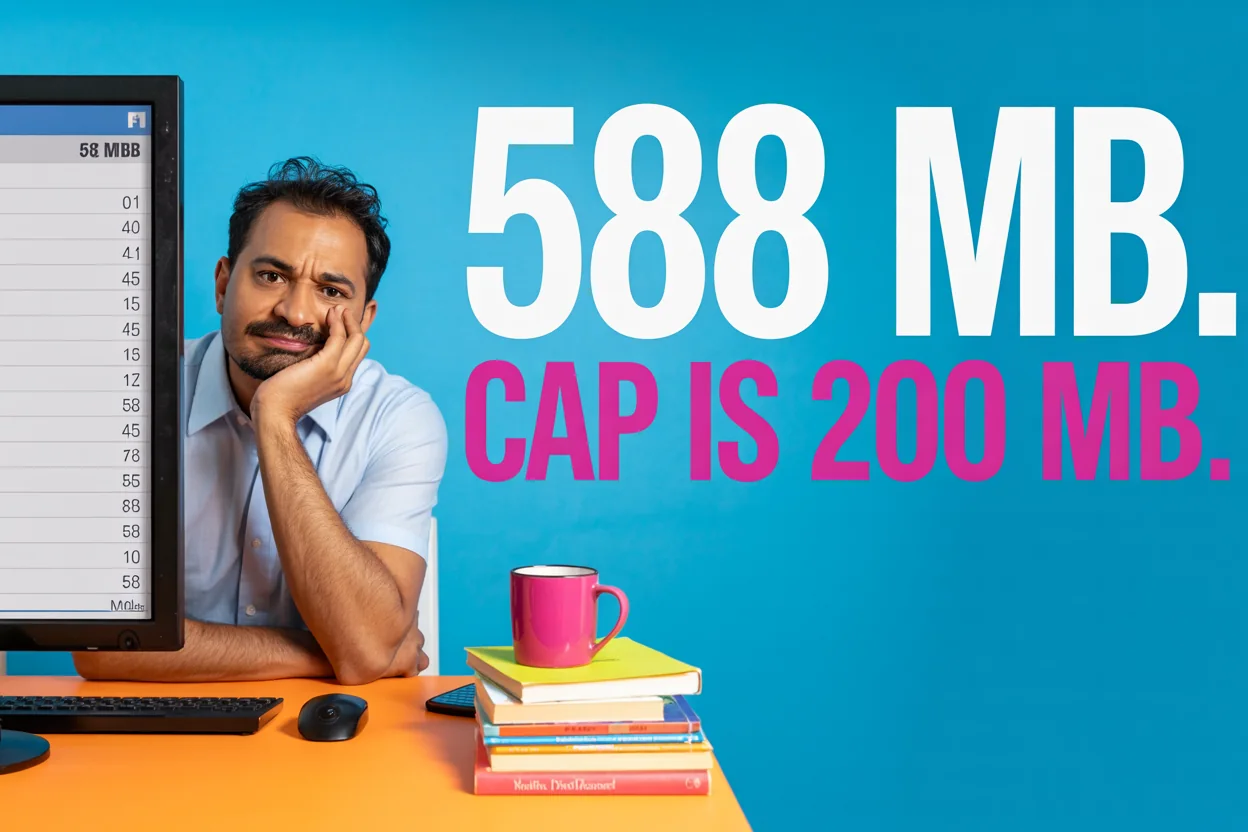
NotebookLM caps uploads at 200 MB per source.
📌 My video was 588 megabytes. NotebookLM took one look and said no. It did not negotiate.
Check your file size before you sit there watching an upload that was never gonna work:
- On a PC: right-click the file, go to Properties, look at Size
- On a Mac: right-click, then Get Info
Over the line? Convert it to an MP3. Audio files are dramatically smaller than video, and it’s all the transcript needed in the first place. Still too big after that? Split it into two files and upload both.
And before you ask: I’m on Pro, and 200 MB is still 200 MB. Paying doesn’t buy you a bigger door.
The Other Limit Nobody Warned You About
This one is new, and it caught a lot of people off guard.
As of September 2, 2026, Gemini Notebook stopped using simple daily caps and switched to compute-based usage limits. Translation: instead of a simple daily count, it now measures how hard you’re working the thing. Long chats, fancy features, and heavy generations all burn more of your allowance.
There are two meters running:
- A 5-hour window that refills on its own
- A weekly cap sitting on top of it
Max out either one and you’re locked out until it resets.
Under the old rules, hitting a limit cost you a day. Under the new ones, it might cost you a week.
The good news is it shows its work. Open Settings, then Usage in the top right, and you’ll see where you stand. It also warns you as you get close, with messages like “You’re almost at your AI usage limit. Limit resets at 3:00 PM.”
And if you’re tapped out, you can now queue a big generation to run later instead of losing it.
What burns your allowance, straight from Google: how complex your prompt is, how long the chat runs, and which models and features you use.
Paying moves the ceiling rather than removing it. AI Plus doubles the standard limit, Pro quadruples it, Ultra goes higher still.
Does This Work for Podcasts and Audio Files?
Yes. And honestly, audio is the smoother road.
MP3s are officially supported, they upload faster, and they’re small enough that you’re way less likely to smack into that 200 MB ceiling.
Recorded a podcast episode? Same five steps. Twelve-minute voice memo? Same five steps.
What Do You Actually Do With the Transcript?
This is the real point. The transcript isn’t the thing. It’s the raw material for the thing.
| ✨ Turn it into | 🙋♀️ Why it works | ⏱️ Effort |
|---|---|---|
| An email to your list | You already said it out loud, in your voice | Low |
| A blog post | This post is a transcript that grew up | Medium |
| Social captions | Chop out the good parts, post them | Low |
| A freebie or lead magnet | If the content teaches something, it’s already a product | Medium |
| Show notes or a recap | Your group gets the highlights without rewatching | Low |
One recording. Five pieces of content.
That’s not hustle culture. That’s refusing to throw away work you already did.
Frequently Asked Questions
Is NotebookLM free? Yes, there’s a free tier. I’m on Pro, and the 200 MB per-source limit hit me exactly the same. Paying doesn’t unlock a bigger file, it buys you a bigger usage allowance. Different thing.
Wait, is it NotebookLM or Gemini Notebook? Both. Google renamed NotebookLM to Gemini Notebook in 2026. Same tool, same features, same 200 MB ceiling. If you search for either name you’ll land in the right place.
Do I need my video on YouTube first? Nope. That’s the entire reason this method exists. If your video is on YouTube, skip all this, paste the link into NotebookLM directly, or just use YouTube’s own “Show transcript” button.
Why does the transcript look like such a mess? Because it’s raw. No paragraph breaks, barely any punctuation, every “um” preserved for posterity. Paste it into Gemini or ChatGPT and ask it to clean up the formatting and cut the filler.
Will it spell my name right? Probably not. Mine came out with a K instead of a Q. Catch it in cleanup.
How long does this take? About five minutes of actual attention. The upload is the slow part, and you don’t have to babysit it.
The Bottom Line
You don’t need another tool. You don’t need another subscription. You don’t need to spend a Saturday learning somebody’s dashboard.
You need the words out of your video, and NotebookLM will hand them to you in five minutes using something you already have.
Skill beats speed. Free beats fancy.
Go get your words back.

Aquita ShepherdFormer 5th grade teacher. I built my online business on the side, and now I help you get seen, get fans, and get paid, in the margins of a full life.
Want the next one?
New videos every week on YouTube. Free.